InboxCrew Shared Inbox helps Google Workspace teams coordinate email sent to a shared address. Track a conversation from Gmail, claim it or assign a teammate, and keep its status and internal notes together. Everyone works from the team email already delivered to their own mailbox.
14-day Pro trial with no card required. Continue on Free when the trial ends.
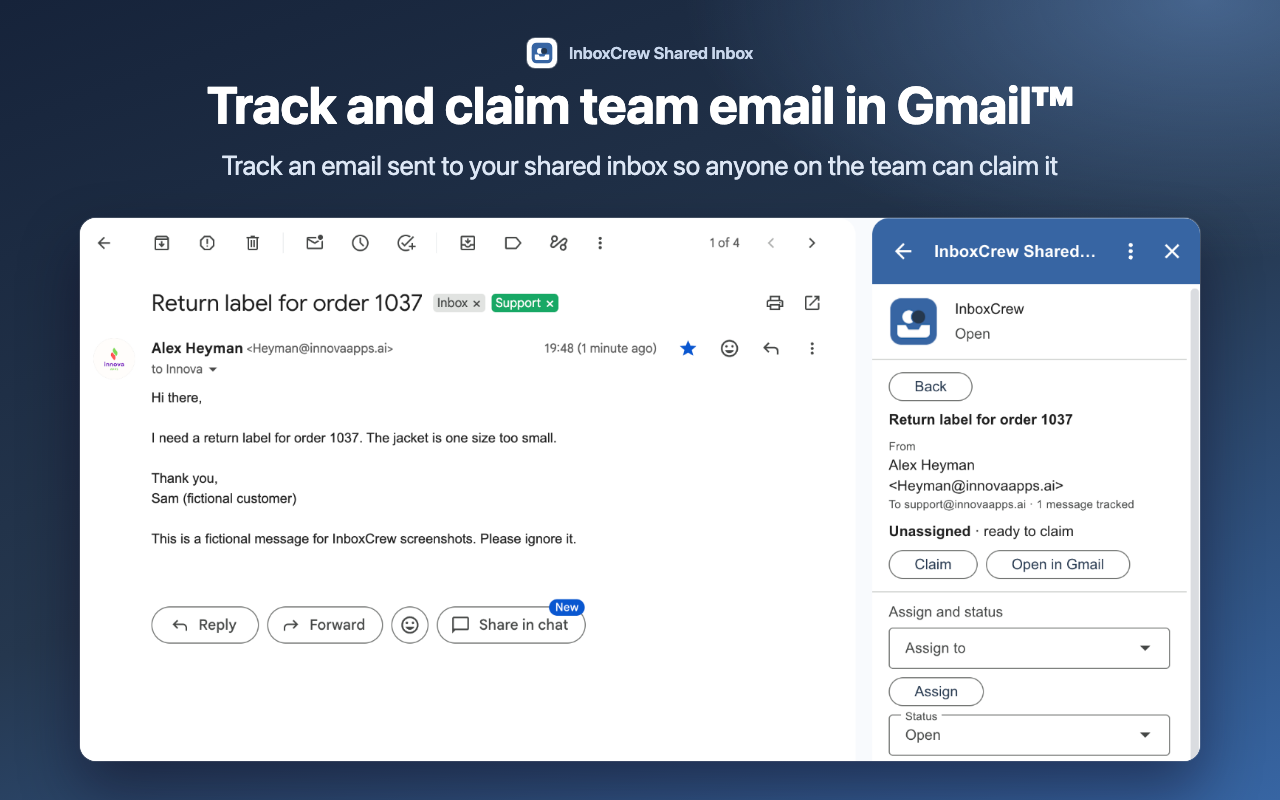
Track and claim a conversation from Gmail. This example uses a fictional customer email prepared for the public listing.
What you can do with InboxCrew Shared Inbox
One conversation, one shared record
Click Track this message on an email sent to your team address. InboxCrew recognizes teammates’ copies of the same email, so the conversation has one shared record. Tracking a reply joins it to the same conversation and reopens it if its status was Waiting or Done.
Clear ownership and internal notes
Claim a conversation yourself or assign it to a teammate. Choose Open, Waiting or Done, and leave notes that only your approved team can read. An activity history records changes, and a refresh check helps prevent one teammate overwriting another’s update.
A queue for you and your team
See My queue and unassigned conversations in the Gmail sidebar. Open the browser workspace for the team queue, status filters, search, internal notes and admin settings. Export conversation records to CSV or save a digest preview; the preview is never emailed.
How to get started
Install and create your team workspace
Install InboxCrew from Google Workspace Marketplace, open Gmail on the web and select InboxCrew in the side panel. The first person from your organization chooses Create team workspace; colleagues ask to join and wait for approval.
Add your shared team address
An admin adds the team address in InboxCrew or its browser workspace. Make sure that address delivers email to each teammate’s own mailbox. The app’s admin role manages this workspace and does not grant Google Workspace administrator privileges.
Track, claim and follow up
Open a message sent to the shared address and click Track this message. Claim it, assign an owner, add a note and update its status as work progresses. Teammates see the same record when they track their copy.
Every new team workspace receives a 14-day Pro trial without a payment card. It then continues on Free unless an admin subscribes. Prices are in USD and include applicable tax; Stripe Checkout adds no extra tax.
Free: one shared inbox and 25 new conversation records per calendar month, per workspace.
Pro: USD 5 per member monthly or USD 48 per member yearly, with a minimum of two members — USD 10 monthly or USD 96 yearly.
Pro includes up to 50 shared inboxes and 20,000 conversation records. A workspace supports up to 200 members.
Pro renews until canceled. Its billed member count follows your team; membership changes are prorated on the next invoice.
Frequently asked questions
Does InboxCrew track email automatically?
No. A conversation is added only when someone clicks Track this message. InboxCrew does not scan or search the mailbox. To bring a reply into a tracked conversation, a teammate tracks that reply.
Does it read email bodies or attachments?
No. After an explicit Track action, it reads only the selected message’s headers. It never sends replies, changes labels or read status, moves messages or deletes email. Stored team records and backups are encrypted.
What happens after the Pro trial?
The workspace continues on Free without an automatic charge. Existing records stay visible and editable, and CSV export keeps working. If you have more than one shared inbox, new tracking pauses until an admin removes the extras or resumes Pro.
What counts toward the Free allowance?
Only new conversation records created while the workspace is on Free count toward its monthly 25. Teammates’ copies and replies added to an existing conversation do not count again. Deleting a record does not restore that month’s allowance.
Get started with InboxCrew Shared Inbox
Follow the setup guide, or contact Innova Apps if you need help choosing a plan or getting your team ready.
 Innova Apps